Clinic Layouts
|
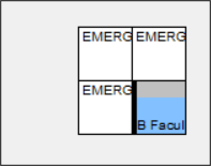
Note: Although Book mode does not require clinic layouts for clinics, they can be used if a clinic is set to Book by Chair. Clinic layouts are a way to convey information in the Scheduler. This includes a floorplan of available chairs in the clinic, as well as other identifying information, such as which types of appointments and/or providers should be booked into each chair. They are created and managed from the Chair tab. There are two different types of layouts available: Session layouts allow you to stamp chairs with instructor, discipline, and provider group information for a session. Important: If using session layouts to control instructor schedules, ensure that instructor schedules are not configured from Maintenance as this may cause scheduling conflicts. Each clinic can use only one set schedule. Note: When working in Availability mode, provider group information cannot be added to the session layout. Daily layouts allow you to stamp chairs with instructor, discipline, and provider group information for a day. They also allow you to create chair reservations for providers. Chair reservations allow you to assign a provider to a chair for a specific date and time. Tip: Daily layouts can be used as an override for session layouts. Note: When working in Availability mode, provider group information and chair reservations cannot be added to the daily layout. Tip: If working in Book or Chair mode, you can configure a station option to enforce any stamped provider group settings so that a warning message displays when a user attempts to reserve a chair for a provider not in the group stamped on the chair. This is configured from the Scheduler Options window > Warn if Reserving Chair Assigned to other Provider Group field. Chairs can display in different colors based on their status.
The following may also display on chairs:
Tip: A black band signifies that there are no appointments with set statuses. Note: Appointment backgrounds must be configured to use appointment status colors in the Scheduler > Active tab. This is configured from the Scheduler Options window > Appt Background Color field and Show Appt Status Colors on Chair Tab field. To manage a clinic layout:
Note: When working in Availability mode, this task is not applicable. Note: This option is only enabled if the Scheduler Options window > Chair Labels section > Enable Partial Reserve on Chair Tab checkbox is selected. Note: When working in Availability mode, this task is not applicable. Some chairs/appointments may require a secondary provider to assist the primary provider. Note: If there are multiple partial reservations in the chair during the session, the provider is added to all. Tip: Chairs reserved with a second provider display an (*). Note: When working in Availability mode, this task is not applicable. Note: Removing the primary provider reservation automatically removes any secondary provider reservation. Note: When working in Availability mode, this task is not applicable. When necessary, you can move a reservation (provider and their patient) to another chair in the current clinic or a different clinic. Note: Reservations can be moved between sessions, but not between different dates. Tip: To cancel a move, right-click the cell and select Cancel. Sometimes you may need to make a chair unavailable for use in a clinic. Example: The chair requires maintenance. In some cases, chairs can be made unavailable because of a recurring reason. Example: The clinic is closed every second Friday for classes. Important: If making a chair unavailable for a range of dates, confirm the dates are correct. Chairs can only be made available again one at a time on each individual date. To make a chair unavailable:
When necessary, you can reassign a provider’s appointments to another provider. Examples: You can reassign an entire day’s schedule to another provider or move all appointments to the other chair. Notes: When necessary, you can indicate if instructor-approved cancellations occurred on a chair reservation. Example: Bad weather prevented most students from attending school that day. Session layouts allow you to specify chair information for a session. They are typically created for sessions that repeat over a range of time. When adding a session layout, you can stamp chairs with instructor, discipline, and provider group information for a session. Note: When working in Availability mode, provider group information cannot be added to the session layout. Tip: If working in Chair or Book mode, you can configure a station option to enforce any stamped provider group settings so that a warning message displays when a user attempts to reserve a chair for a provider not in the group stamped on the chair. This is configured from the Scheduler Options window > Warn if Reserving Chair Assigned to other Provider Group field. If including instructor information in the session layout, this defines the pattern of days that an instructor will work and identifies which clinic chair an instructor will cover during the session. Important: This does not reserve chairs. Example: You can specify the covering instructor for a section of a clinic so students will know who they need to talk to for grading, approvals, start checks, etc. Tip: These are most often used when instructors have regular, predictable schedules. Note: Depending on configuration, an instructor may cover multiple chairs during a session. Instructor information is generally set for undergrad clinics that use Chair or Availability mode. To manage session layouts: Tip: Select the Show Past checkbox to display previous session layouts.
Note: You cannot delete a session layout that is in use. Once the session layout has been created, you can stamp the information onto each chair in the clinic. Note: Gray chairs are unavailable and cannot be stamped.
Tip: To clear a cell and remove incorrect stamps, right-click the cell. Note: Each cell can hold up to three types of stamps. If you select a new option from a field and click an already stamped cell, the content is replaced with the new entry. Note: The Discipline/Group Layout report uses the GroupL.rpt file in your SReports folder. Daily layouts allow users to specify chair information for a session on a single date for the currently selected clinic, date, and session. When adding a daily layout, you can stamp chairs with instructor, discipline, and provider group information for a day. Daily layouts can also be used to reserve a chair for a provider for that day. Notes: Important: You cannot delete the daily layout. If necessary, you can modify the layout to remove stamps and other information. Tip: If working in Chair or Book mode, you can configure a station option to enforce any stamped provider group settings so that a warning message displays when a user attempts to reserve a chair for a provider not in the group stamped on the chair. This is configured from the Scheduler Options window > Warn if Reserving Chair Assigned to other Provider Group field. If including instructor information in the daily layout, this identifies which clinic chair an instructor will cover that day. Important: This does not reserve chairs. Example: You can specify the covering instructor for a section of a clinic so students will know who they need to talk to for grading, approvals, start checks, etc. Note: Depending on configuration, an instructor may cover multiple chairs. Instructor information is generally set for undergrad clinics that use Chair or Availability mode. To manage daily layouts:
Note: If only allowed a single chair, the provider is removed from the list when assigned to a chair. If removed from the layout, they are re-added to the list, even if they do not match the current search criteria of the list. Note: When working in Availability mode, this step is not applicable. Tip: To clear a cell and remove incorrect stamps except for already saved chair reservations, right-click the cell. Important: To remove a saved provider reservation, it must be unreserved from the chair layout. |
): This indicates the chair is not reserved.
): This indicates the chair is reserved for a provider other than the current user, but no appointments are scheduled.
): This indicates the chair has an appointment, and the provider scheduled an appointment.
): This indicates the chair is reserved for the currently logged in provider.
): This indicates the chair is reserved for another provider and a staff member scheduled an appointment.
): This indicates the chair is unavailable.
): This indicates the chair is unavailable due to a clinic holiday.